Sending a report
What the person reporting a bug sees, click by click. They need no account and nothing installed.
1. They click the button
The button in the corner opens a small menu with two choices:
📷 Screenshot— for “this looks wrong”.🎥 Record video— for “it breaks when I do this, then this”.
If you've also added your own button somewhere in your app, that one skips the menu and grabs the screen immediately.
2. They capture the problem
Screenshots
They drag a box around the part that looks wrong. That's it — nothing to pick, no prompt from the browser.
BugClip does this by rasterizing your page: redrawing it from your own HTML and CSS into a flat image, rather than photographing the screen. That's why it's instant and why the browser never asks permission — nothing outside your page is ever read. It's also why an image the browser won't let us read comes through blank; see Troubleshooting.
Videos
Choosing 🎥 Record video asks one question: what to record.
- This page is already selected and starts right away. It records your page as they use it, with no interruption and no permission prompt.
- My screen is the alternative. It records the actual screen, which means the browser asks their permission first — the dialog says so plainly.
Why two? This page doesn't record video at all. It writes an event log — a timestamped list of everything that changes on the page, like “this text became that” or “this menu opened” — and your browser rebuilds the page from that list when you play it back. It's more like sheet music than a recording.
That's why it comes out a fraction of the size of the same moment recorded as video, why it never needs permission, and why the text is still real text when you play it back. The catch is that it can only write down things that are part of your page. A checkout embedded from another company, a map widget, anything drawn on a canvas, or the browser itself — the address bar, native popups, other tabs — will be missing.
My screen is a real video of real pixels, so it catches all of that. That's the trade: it sees everything, but it has to ask, and the file is much bigger.
Either way, recording runs until they hit Stop.
3. They describe it and hit send
Everything now happens on one screen: their capture, a box to write in, and Send / Discard.
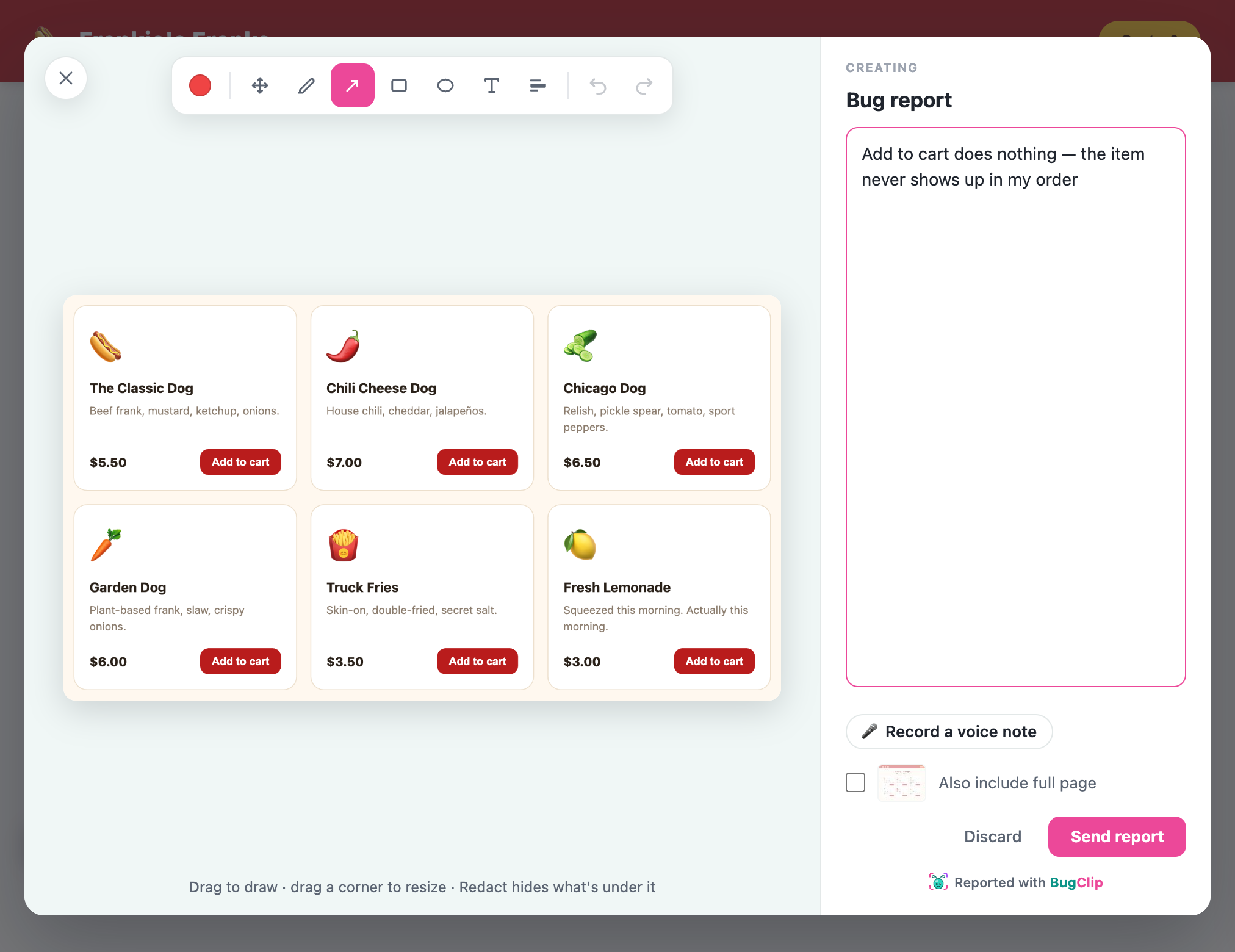
The note is optional, but it's usually the most useful part — it's where they say what they expected versus what actually happened.
Marking up a screenshot
Before sending, they can draw on it: an arrow or a box to point at the problem, or a redact box to permanently black out anything private that ended up in the frame. A mark stays selected the moment it's drawn, with grab points on it — so it can be resized or re-aimed straight away by dragging a corner. Anything drawn earlier can be picked back up with the Select tool, dragged elsewhere, or deleted with ⌫.
Trimming a video
Videos get a timeline with handles they can drag to cut off the dead time at the start and end. Any errors that happened are marked along the track, so they can see roughly where things went wrong.
This page recordings can be trimmed from the end. My screen recordings can be trimmed from both ends.The full-page extra
A snipped box shows what's broken, but the rest of the screen often explains it — which step they were on, what else was showing. Also include full page sits under the note, unticked, with a thumbnail of exactly what ticking it would add. It attaches everything that was visible at the moment of capture, and you'll find it on the report as Full page at time of report.
Speaking instead of typing
Not everyone wants to write a paragraph explaining a bug. BugClip lets them talk instead.
On a video, the same dialog that asks what to record offers 🎤 Record my voice too, so they can narrate the problem as they reproduce it. On a screenshot there's no timeline to narrate over, so they can record a short voice note next to the typed note instead — up to two minutes, and they can play it back and re-record before sending.
It's their decision every time and the box always starts unticked. There's no project setting for it, because the voice being recorded is theirs, not yours.
Ticking it triggers the browser's microphone prompt. If they say no — or have no microphone — the recording simply carries on without voice rather than failing.
Sound from the page itself
This is a different thing from narration. A My screen recording can also capture the sound your page makes — a video player, an alert chime — but only if you turn on Capture audio in Widget settings and the reporter allows it when the browser asks. It's off by default.
This page recordings never carry page audio, because they rebuild the page rather than record it. Any sound on that path is the reporter's voice.
Keeping things out of a recording
In a This page recording, anything typed into a form field is masked automatically as it's recorded — passwords and personal details never make it into the report in the first place.
To hide anything else, add a class to it in your own HTML:
bugclip-mask— swaps the text for placeholder characters. The layout stays intact.bugclip-block— leaves the element out completely. It shows up as an empty box the same size.
This page recordings only. Screenshots and My screen recordings capture what was actually on the screen, so a masked field shows its real contents there. On those paths the reporter's own tools are the safeguard: the redact tool blacks out anything private in a screenshot, and trimming cuts it out of a screen recording.Then what?
The report appears in your dashboard within seconds. See Reading a report for what you get and how to pass it on.